This month, I had to deliver a batch of 45 high-resolution product shots for an e-commerce brand in Austin, along with compliant headshot IDs for their remote onboarding team, all before a 5 PM deadline. Relying on a single heavy desktop app for everything slows you down when half the job needs deep RAW color grading and the other half needs clean background removal, exact pixel dimensions, and fast web compression. Over the past three weeks, I tested seven photo editing tools across both desktop and browser workflows to see which ones actually save time without ruining image sharpness or skin textures.
Whether you are a commercial photographer, a social media manager, or someone who just needs a compliant document photo in two minutes, here is how the top photo editors perform in real-world use.
Key Takeaways
- Best Overall Professional Editor: Adobe Photoshop remains unmatched for multi-layer compositing and generative object removal.
- Best for Batch RAW Photography: Adobe Lightroom Classic leads for organizing and color-grading hundreds of camera files at once.
- Best Free Desktop Alternative: Affinity Photo (now free via Canva) delivers pro-level layers and RAW adjustments with zero monthly fees.
- Best Browser Suite for ID Photos, Resizing & Compression: TechTube Passport Photo Maker handles exact 2×2 inch US dimensions and background cleanup directly in your browser, pairing cleanly with TechTube’s free Image Resizer and Image Compressor for fast web delivery.
- Best One-Time Purchase AI Editor: Luminar Neo speeds up sky replacements and portrait retouching without locking you into a permanent subscription.
Comparison: Top 7 Photo Editing Tools (2026)
| Tool Name | Primary Strength | Platform | Free Tier / Trial | Starting Price (USD) |
| Adobe Photoshop | Layer compositing and generative AI | Windows, Mac, Web | 7-day free trial | $22.99 / month |
| Adobe Lightroom Classic | Batch RAW editing and cataloging | Windows, Mac | 7-day free trial | $9.99 / month |
| TechTube Passport Photo Maker | Instant ID sizing, background cleanup & print layouts | Web Browser | 100% Free | Free |
| Affinity Photo | Subscription-free desktop editing | Windows, Mac, iPad | Completely Free | $0 (Free) |
| Luminar Neo | One-click AI sky and portrait fixes | Windows, Mac | 7-day free trial | $49.99 (One-time) |
| Capture One Pro | Studio color accuracy and tethered shoots | Windows, Mac | 30-day free trial | $14.92 / month (billed annually) |
| Photopea | Browser-based PSD and layer editing | Web Browser | Free (Ad-supported) | $5 / month (Pro) |
1. Adobe Photoshop

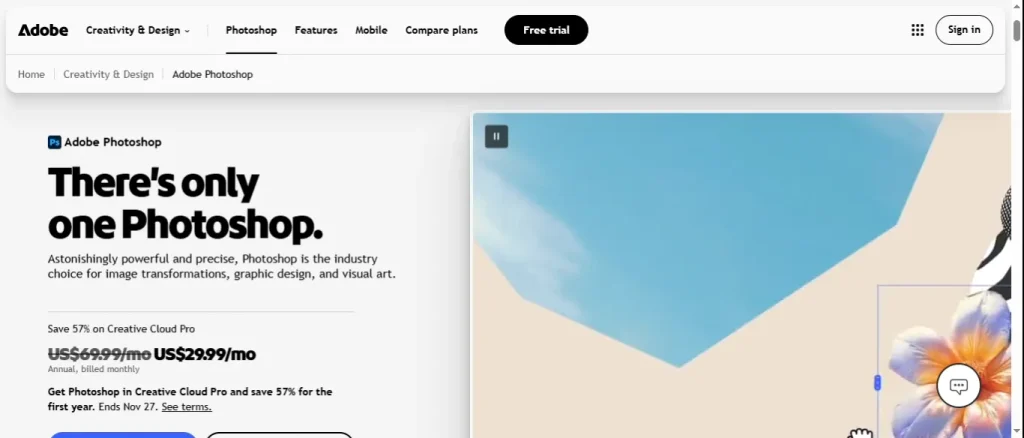
Adobe Photoshop is still the benchmark when you need pixel-level control over an image. During my studio testing, I used its updated Generative Remove and Distraction Removal tools to clean up power lines and studio light stands from a commercial street shoot. Instead of leaving blurry smudges, the edges blended naturally into brick textures and shadows.
- What Works: Non-destructive layer masks, industry-standard CMYK print support, and fast subject selection around stray hair.
- The Catch: You can no longer buy the cheap legacy bundle for new accounts, meaning standalone Photoshop costs $22.99 per month, and generative AI credits have monthly limits.
- Best For: Graphic designers, commercial retouchers, and composite artists.
2. Adobe Lightroom Classic
If you shoot 500 wedding or event photos in RAW format, opening them one by one in Photoshop is a nightmare. Lightroom Classic is built around speed, letting you sync exposure, white balance, and lens corrections across an entire gallery in seconds.
- What Works: Its AI Denoise cleans up high-ISO night shots without turning faces into plastic, and its AI masking isolates skies, subjects, or clothing automatically.
- The Catch: The interface feels dated compared to cloud-based apps, and it lacks true multi-layer graphic design tools.
- Best For: Wedding, event, and travel photographers who need fast batch editing.
3. TechTube Passport Photo Maker – Best Free Browser Tool for ID
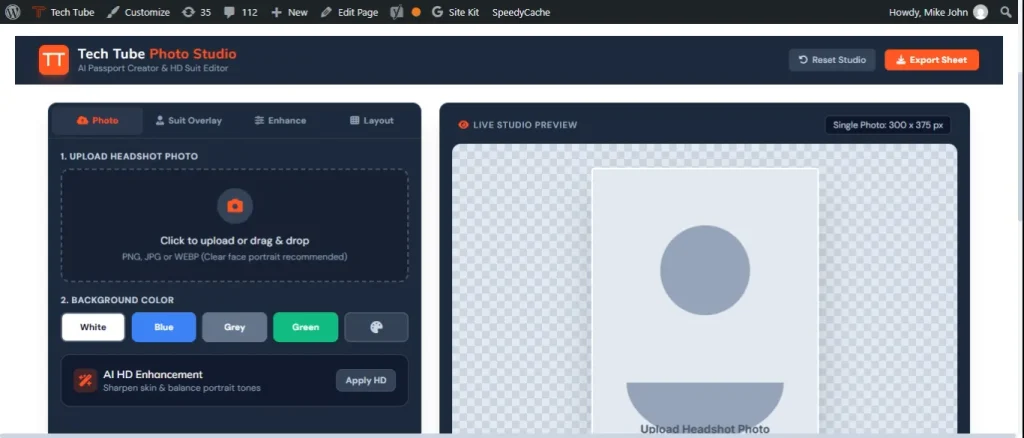
Not every editing task requires a 30GB desktop program. When you need compliant headshot dimensions for a US passport, visa application, or corporate badge, manual cropping in heavy software often leads to rejected uploads due to wrong head-to-chin ratios or off-white backgrounds.
The TechTube Passport Photo Maker solves this specific workflow right inside your browser. You upload a standard smartphone portrait, and the tool automatically aligns your head position, cleans up the background to a uniform white or light gray, and formats the file to official standards (including US 2×2 inch and international biometric sizes). If you are preparing general web assets alongside your portraits, you can also run your finished exports through the free Image Resizer and Image Compressor on the same site to hit exact platform pixel dimensions and fast-loading file sizes without losing visual clarity.
- What Works: Zero installation required, instant background replacement, ready-to-print 4×6-inch sheet layouts that save you $15 at local drugstore print counters, and seamless browser utilities for resizing and compression.
- The Catch: Purpose-built for ID portraits, quick resizing, and web optimization rather than multi-layer artistic RAW color grading.
- Best For: Travelers, remote teams, bloggers, and anyone needing compliant ID photos or fast web-ready images in under two minutes.
4. Affinity Photo
After Canva acquired Serif, Affinity Photo transitioned into a completely free creative suite for Windows and Mac users. Unlike stripped-down freeware, it opens native .PSD files, handles 16-bit RAW development, and supports live adjustment layers without lagging.
- What Works: Full layer-based editing, HDR merging, focus stacking, and zero recurring subscription fees.
- The Catch: It does not include a built-in photo catalog browser like Lightroom, and cloud-based generative AI features require a paid Canva Pro plan.
- Best For: Freelancers, students, and small studios looking to cut monthly software bills.
5. Luminar Neo
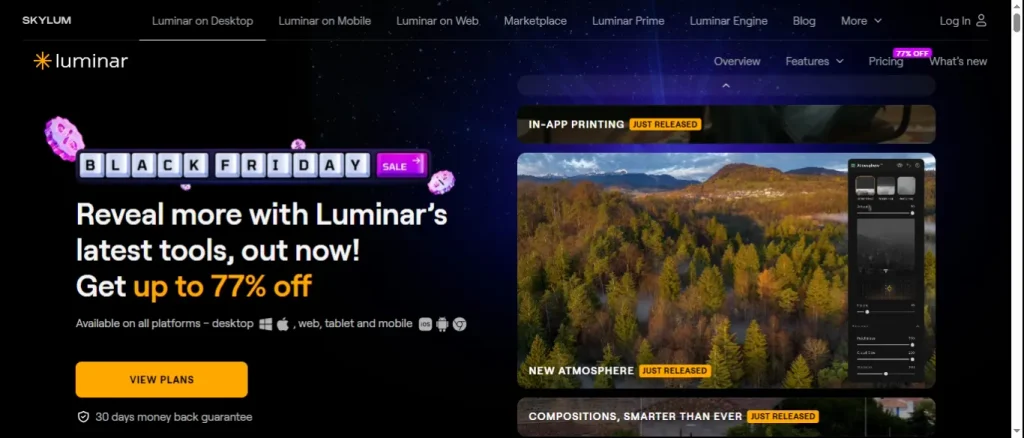
Luminar Neo is designed for creators who want clean results fast without spending twenty minutes tweaking tone curves. Its rebuilt Enhance AI and Relight tools let you fix backlit portraits by adjusting foreground brightness independently from the background.
- What Works: Natural-looking sky replacements, fast skin retouching without over-smoothing pores, and a perpetual license option.
- The Catch: Batch processing large wedding folders runs noticeably slower than Lightroom Classic.
- Best For: Landscape shooters, real estate agents, and creators who prefer owning software outright.
6. Capture One Pro
Walk into almost any high-end fashion or commercial product studio in New York or Los Angeles, and you will see Capture One running on the studio monitor. Its color editor gives you granular control over subtle skin tones and brand-accurate fabric shades that other RAW engines struggle to separate.
- What Works: Instant tethered capture directly from your camera to your laptop screen, plus advanced color wheels for highlights, midtones, and shadows.
- The Catch: The pricing is steep for casual users, and the learning curve takes real practice.
- Best For: Commercial product photographers, fashion studios, and color-critical workflows.
7. Photopea
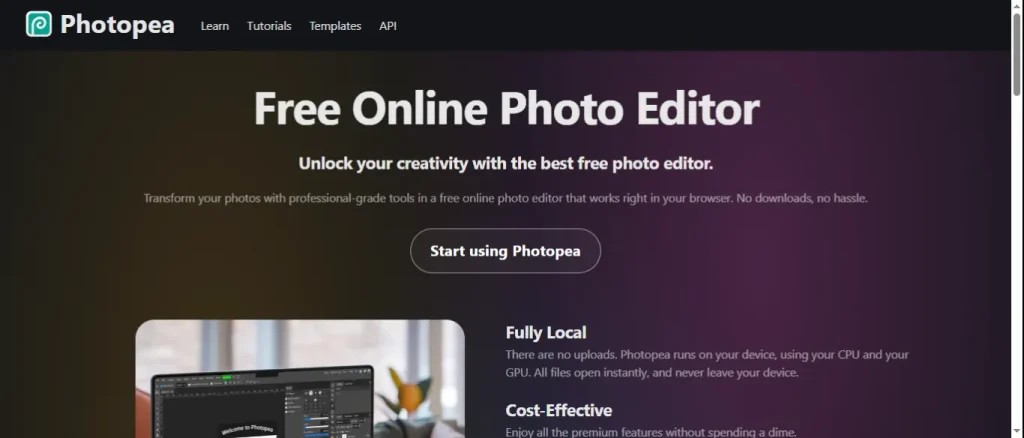
When you are working on a Chromebook or a borrowed laptop and need to edit a layered .PSD, .Sketch, or .XD file immediately, Photopea runs completely inside your browser tab.
- What Works: Familiar keyboard shortcuts, pen tools, smart objects, and layer styles that mirror Photoshop’s layout almost button for button.
- The Catch: Large 50-megapixel RAW files can slow down browser memory, and the free version displays sidebar ads.
- Best For: Quick web graphics, thumbnail edits, and opening PSD files on the go.
3 Practical Rules Before Exporting Photos for Print or Web
Before sending final images to a client, printing a passport sheet, or uploading to your website, follow these three simple habits:
- Match Your Color Profile to the Output: Always export web and social media images in sRGB. If you export in AdobeRGB or ProPhoto RGB for the web, browsers will wash out your colors and make skin tones look gray.
- Optimize Dimensions & File Weight for the Web: For physical prints like passport sheets or framed photos, set your export resolution to 300 DPI. For blog posts, e-commerce listings, and social media, scale your pixel dimensions down first using an Image Resizer and shrink the file size with an Image Compressor so your pages load quickly without blurry artifacts.
- Never Over-Sharpen After Resizing: Apply subtle output sharpening only after scaling your image down to its final dimensions. Over-sharpening creates white halos around hair and dark edges.
Frequently Asked Questions (FAQs)
What is the best free photo editing tool in 2026?
For full desktop layer editing and RAW files, Affinity Photo is the strongest free option available. If you work directly in your web browser, Photopea handles complex PSD layers, while TechTube Passport Photo Maker is the fastest free tool for compliant ID and passport sizing.
Do I still need Adobe Photoshop if I use AI photo editors?
If your work involves graphic design, typography, product mockups, or heavy multi-layer compositing, yes. However, if you only adjust lighting, crop images, or clean up backgrounds, lighter tools like Lightroom, Luminar Neo, or browser-based utilities will handle your daily workflow much faster.
What size and resolution should a US passport photo be?
A standard US passport photo must measure 2 x 2 inches (51 x 51 mm) with your head measuring between 1 inch and 1 3/8 inches from the bottom of the chin to the top of the head, saved at a minimum of 300 DPI on a plain white background.
Final Thoughts
The right photo editing tool comes down to the specific job in front of you. If you spend your week retouching commercial campaigns or managing thousands of RAW camera files, Adobe Photoshop and Lightroom Classic remain worth the investment. If you want pro-level desktop power without monthly bills, download Affinity Photo. And whenever you need a fast, accurate, print-ready ID portrait—or want to quickly resize and compress web photos without opening heavy software- keep the TechTube Passport Photo Maker bookmarked in your browser.